Your budget on Apple Watch
See how your month is going and add a transaction from your wrist, seconds after you pay. The Apple Watch app comes with Budgetpeer on iPhone, free on every plan, and stays in sync with your iPhone and iPad.
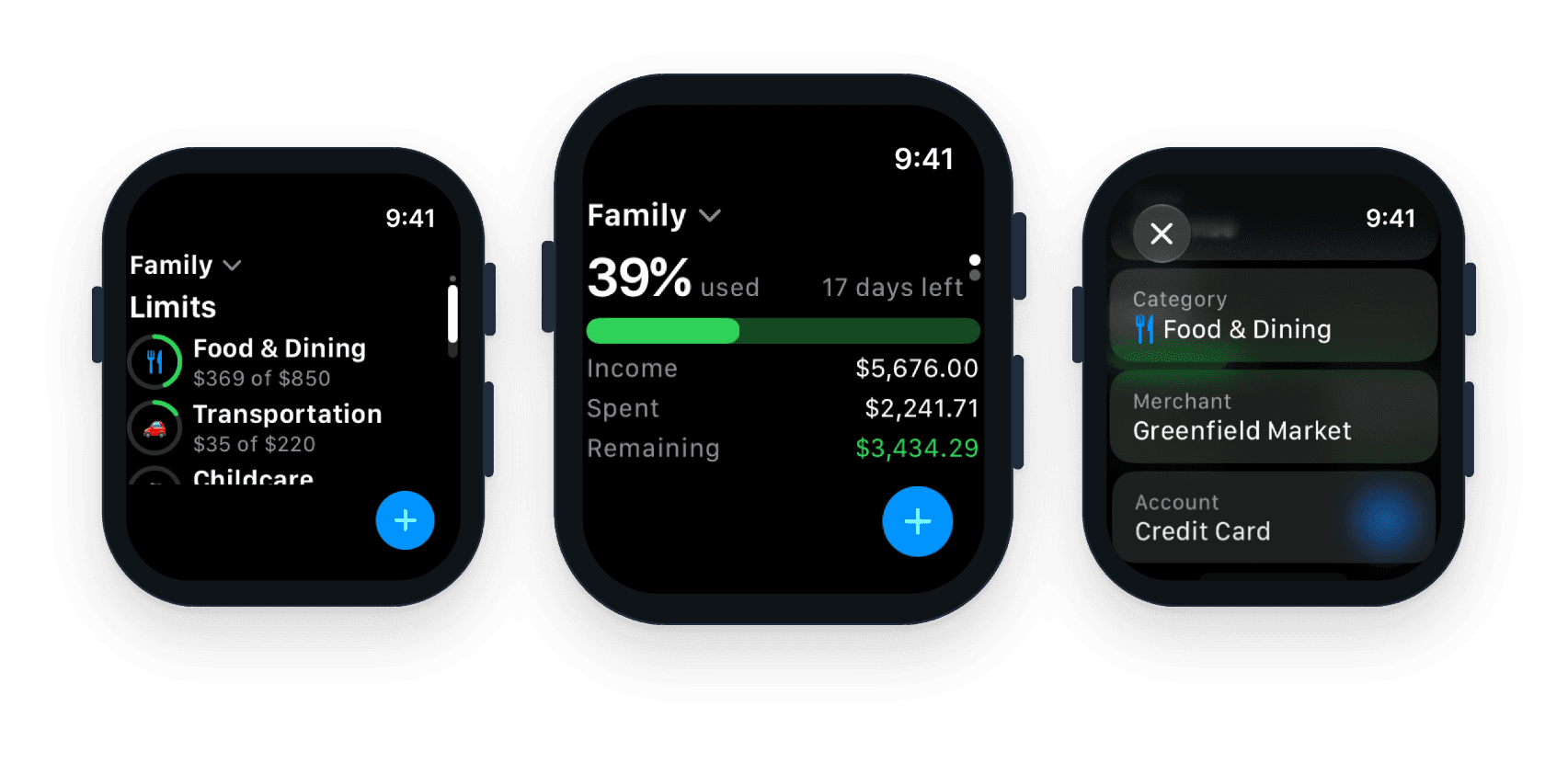
This month at a glance
Percent used, days left, and what came in, went out and is left - with a turn of the Digital Crown to your category spending limits.
This month at a glance
Percent used, days left, and what came in, went out and is left - with a turn of the Digital Crown to your category spending limits.
Add it before you forget
Enter the amount, then pick the type, category, merchant, account and budget. It's dated today and lands on your iPhone and iPad too.
Add it before you forget
Enter the amount, then pick the type, category, merchant, account and budget. It's dated today and lands on your iPhone and iPad too.
One tap from your watch face
Put the Budgetpeer + complication on your watch face and quick add opens with a single tap.
One tap from your watch face
Put the Budgetpeer + complication on your watch face and quick add opens with a single tap.
Free on every plan
The Watch app isn't a paid extra. Free users get it too, with the same free limits as on iPhone.
Free on every plan
The Watch app isn't a paid extra. Free users get it too, with the same free limits as on iPhone.
How to set up Budgetpeer on Apple Watch
1. Sign in on your iPhone
Get Budgetpeer from the App Store and sign in on your iPhone first. The Watch app comes with it - there's nothing separate to buy or download.
1. Sign in on your iPhone
Get Budgetpeer from the App Store and sign in on your iPhone first. The Watch app comes with it - there's nothing separate to buy or download.
2. Install it on your watch
If Automatic App Install is on, it appears on your watch by itself. If not, open the Watch app on your iPhone, find Budgetpeer under Available Apps and tap Install.
2. Install it on your watch
If Automatic App Install is on, it appears on your watch by itself. If not, open the Watch app on your iPhone, find Budgetpeer under Available Apps and tap Install.
3. Open it on your watch
Keep your iPhone nearby and open Budgetpeer on the watch. It signs in through your iPhone, so there's no password to type on your wrist. If it asks you to open Budgetpeer on your iPhone, do that and the watch signs in.
3. Open it on your watch
Keep your iPhone nearby and open Budgetpeer on the watch. It signs in through your iPhone, so there's no password to type on your wrist. If it asks you to open Budgetpeer on your iPhone, do that and the watch signs in.
4. Add the + to your watch face
Touch and hold the watch face, tap Edit, swipe to the complications and choose Budgetpeer for a slot. From then on, quick add is one tap away.
4. Add the + to your watch face
Touch and hold the watch face, tap Edit, swipe to the complications and choose Budgetpeer for a slot. From then on, quick add is one tap away.
Related Articles from the Blog

The Best Budget Apps for iPad in 2026 (and Which Ones Are Just Stretched iPhone Apps)
Start budgeting without the bank login with 50% off
Start budgeting without the bank login with 50% off
Start budgeting without the bank login with 50% off

EARLY BIRD • 50% OFF • ENDS 31 OCT


© 2026 Budgetpeer. All rights reserved.
Compare
Quicken Simplifi vs. Budgetpeer
© 2026 Budgetpeer. All rights reserved.
Compare
Quicken Simplifi vs. Budgetpeer
© 2026 Budgetpeer. All rights reserved.
Compare
Quicken Simplifi vs. Budgetpeer