How to Track Your Investments and Savings Without Connecting Your Bank

Maya is a freelance designer in her late twenties. She uses Budgetpeer to track her spending - logging transactions, watching her monthly budget, keeping her BNPL payments from getting out of hand - something that takes a surprising amount of attention when you're running multiple plans at once. That part of her finances feels under control.
But every few months, she'd find herself logging into three separate places: the pension portal from her old employer, her savings account online banking, and a notes app where she'd typed her student loan balance six months ago and never updated it. Each number lived in its own silo. None of them talked to each other. She had no idea whether things were actually getting better.
She knew she had money in three places. She had no idea if it was growing.
This is the other half of the financial picture that most budget apps don't touch.
The Problem With How Most People Track Their Wealth
If you use a budget app, you probably have a decent view of your spending. But ask it what your pension is worth this month, or whether your student loan balance has dropped by more than expected, and it goes blank.
Apps like Monarch Money and the old Mint tried to fix this by connecting directly to brokerages and loan services - the same model as bank connections. Hand over your credentials, get a dashboard in return. For some people, that trade-off works. For many others, it doesn't. The connection breaks, the data lags, or the idea of giving a third-party app access to your investment accounts feels like a step too far.
The alternative most people end up with is a spreadsheet. It works, technically. But it has no history, no trend lines, no color-coded signal telling you whether your savings rate this month was good or bad. You're just staring at numbers with no context. If you've been managing your budget in Google Sheets and looking for a way out, this guide covers how to build a simple monthly budget without a spreadsheet.
What Maya Set Up in Two Minutes
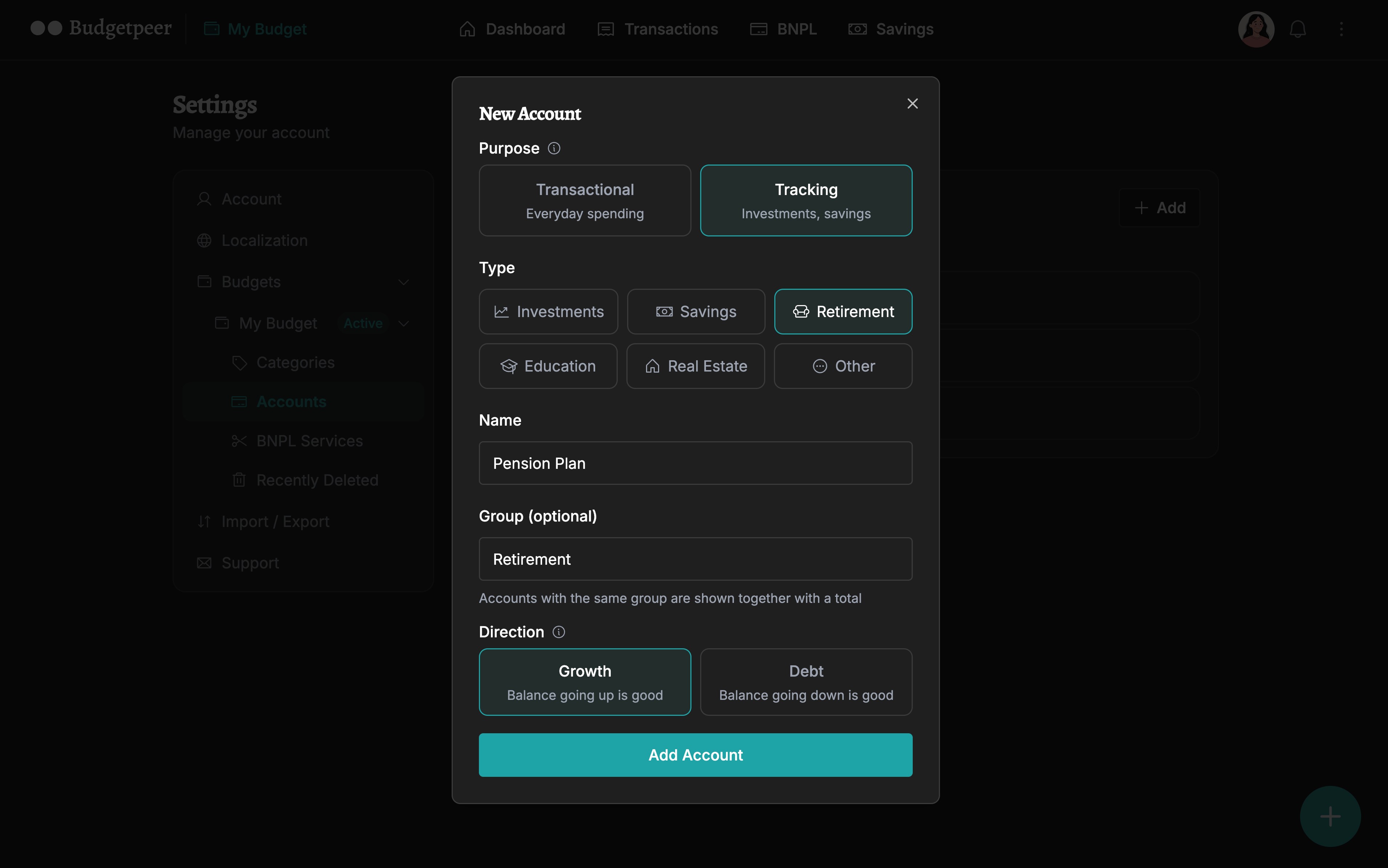
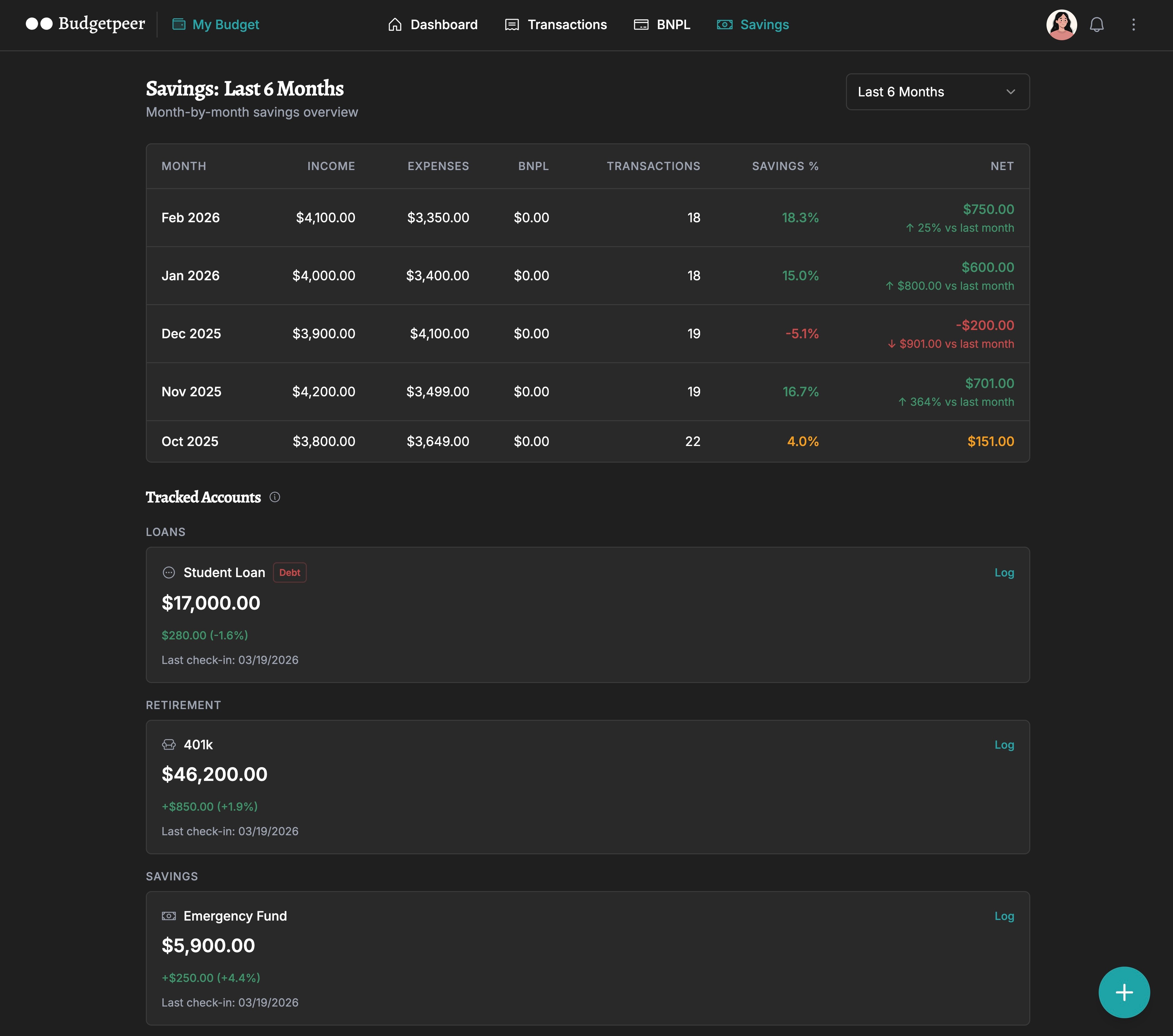
When Maya tried Budgetpeer's Savings page, the first thing she did was add three tracking accounts: her pension (Retirement type), her savings account (Savings type), and her student loan (set to Debt direction, so a falling balance shows as green - because paying down debt is progress).
She tagged the pension under a group called "Retirement" and the loan under "Loans." Then she logged her first balance for each one - the numbers she already knew from memory - and closed the app.
That was it. No bank connection. No brokerage login. No OAuth handshake with anyone. She typed three numbers, and Budgetpeer started keeping the history.
The Monthly Savings Table
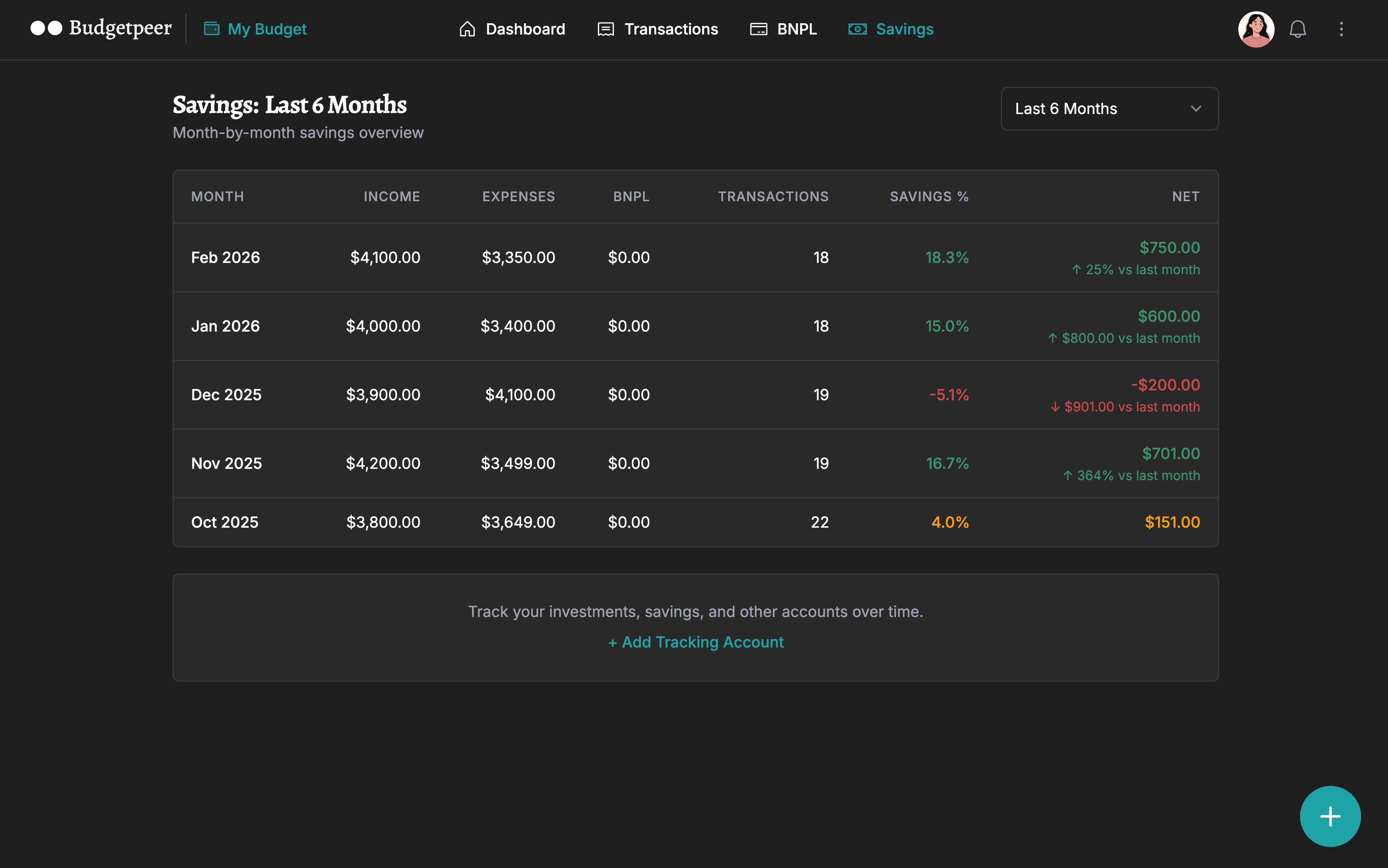
The first thing on the Savings page isn't the tracking accounts - it's the monthly table. A month-by-month breakdown of Maya's financial performance: income, expenses, net balance, savings rate as a percentage, and what portion of her spending came from BNPL installments.
Each month is color-coded. Green if she saved 10% or more. Amber, if she saved something, but less than 10%. Red if she spent more than she earned.
October was red. She already knew why - an unexpected equipment purchase for a client project that didn't get reimbursed until November. Seeing it in context made it less alarming. One bad month, surrounded by green ones, is just a bad month.
This table is fully free for all users.
Watching the Loan Go Down
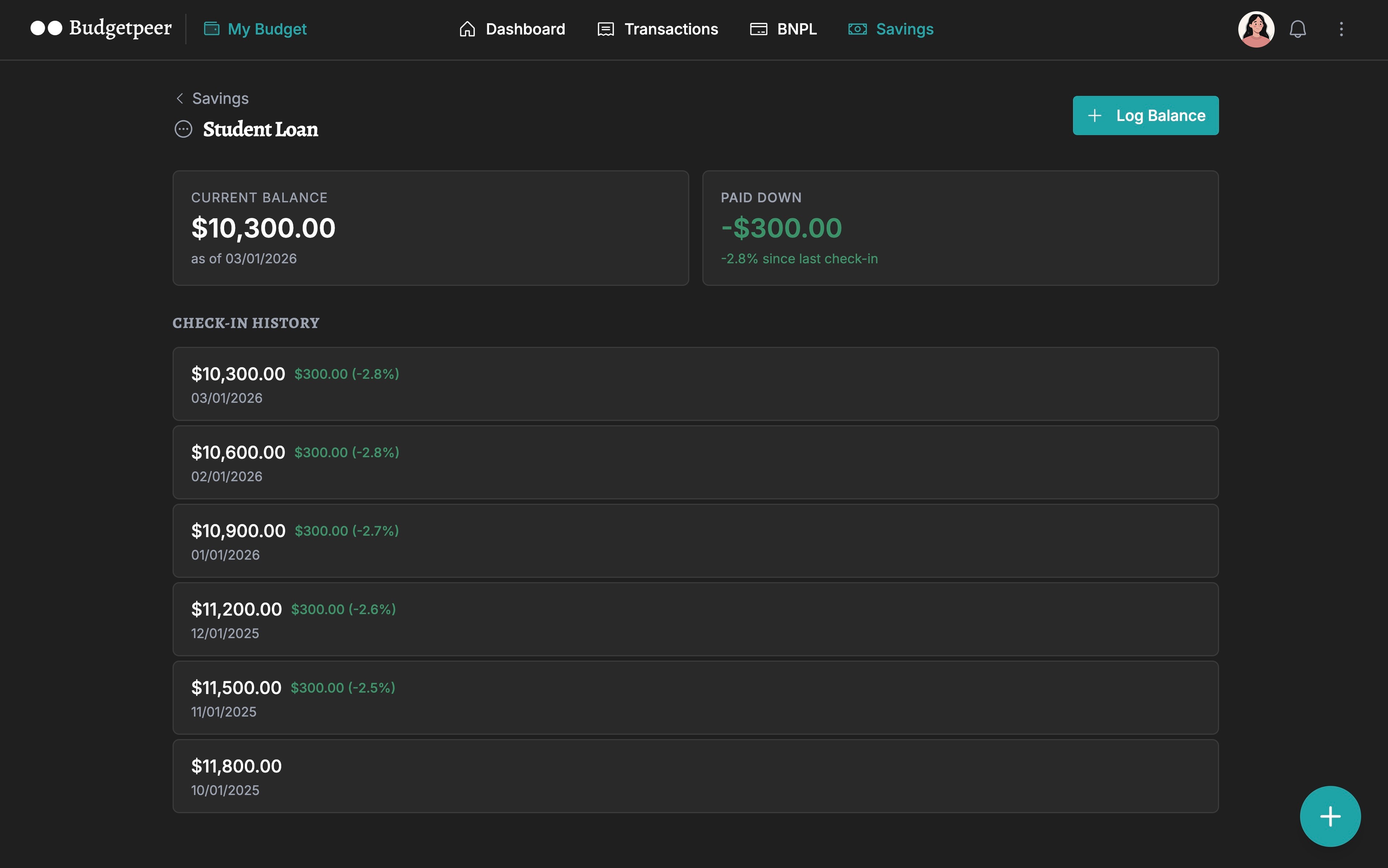
The most satisfying view for Maya was the Account Detail page for her student loan. Every month, she logs the new balance - it takes about 30 seconds - and the page shows the full history as a line trending downward.
Because the account is set to Debt direction, the downward line is green. The app understands that for a loan, less is better. After four months of check-ins, she could see clearly that the balance was dropping by roughly $300 a month - faster than she'd realized, because she'd never tracked it anywhere that showed her the trend.
Budgetpeer's Savings page tracks your pension, savings, and loans in one place - no bank login, no brokerage connection. One tracking account is free. Try it free →
How to Set It Up
It takes about two minutes to add your first tracking account:
Go to Settings → Accounts → + Add
Select Tracking as the purpose
Choose a type: Investments, Savings, Retirement, Education, Real Estate, or Other
Name it, optionally assign a group label, and choose Growth or Debt direction
Go to the Savings tab and find your account under Tracked Accounts
Tap Log to record your first balance
Come back monthly, log the new balance, and watch the trend build
The check-in doesn't need to be precise to the day. Once a month is enough to get a clear picture of direction.
The Privacy Angle
There's no brokerage connection here. No bank login. No OAuth handshake with Fidelity or Vanguard. You enter a number, Budgetpeer stores it, and that's the entire data relationship.
For people who are comfortable connecting their investment accounts to third-party apps, the automated approach has real convenience. But for anyone who isn't - and there are a lot of reasons not to be - manual tracking is the only realistic alternative to a spreadsheet. Budgetpeer makes it a meaningful one. If you want to understand exactly what that bank connection involves before deciding, this breakdown covers what actually happens when you connect your bank to a budget app.
Free vs. Lifetime
The monthly savings table is completely free for all users - no limits, no upgrade required.
Tracking accounts work like this: one account is free, with unlimited check-ins. If you want to track multiple accounts - a pension, a savings account, and a student loan at the same time, like Maya - that requires a Lifetime plan at $49 one-time.
Check-ins are always unlimited regardless of plan. There's no paywall on your own data.
The Bigger Picture
Budgeting and wealth tracking have historically been separate problems that people solve with separate tools. A budget app for day-to-day spending, a spreadsheet or brokerage portal for everything else.
The monthly savings table connects the two. Maya's spending behavior directly produces her savings rate. Seeing both in the same place - in the same app where she logged yesterday's grocery run - makes the relationship between daily decisions and long-term progress visible in a way that two separate tools never quite manage.
She knew she had money in three places. Now she knows whether it's growing.